After downloading the PTCAD 2026 setup file, follow these steps to complete the installation:
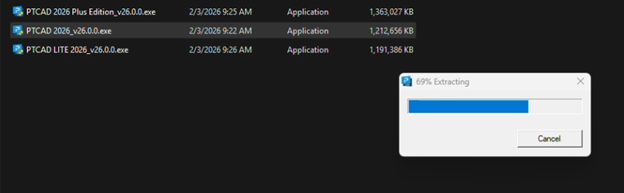
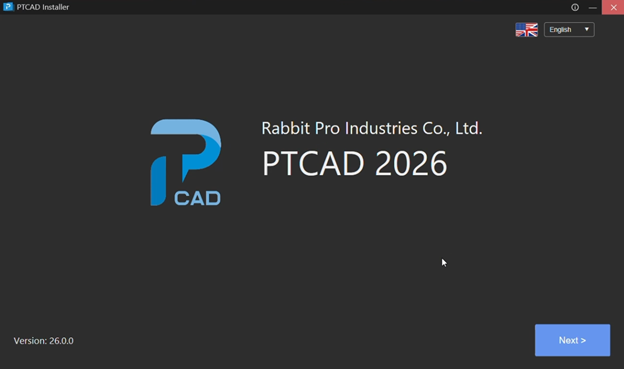
Step 1: Start Installation Run the setup file. The program will extract the necessary files and display the Welcome Screen for PTCAD 2026. Click Next > to continue.
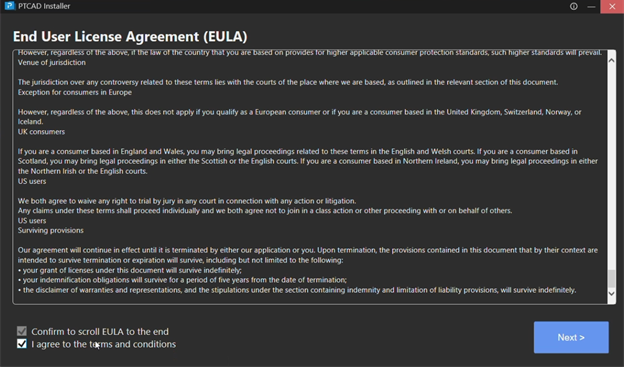
Step 2: License Agreement (EULA) This window displays the End-User License Agreement (EULA) and terms of use.
Check the box: “Confirm to scroll EULA to the end”
Check the box: “I agree to the terms and conditions”
Click Next >
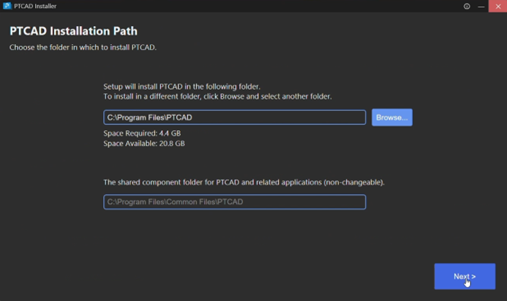
Step 3: Select Installation Location The installer will display the destination folder where the program will be installed (the default path is C:\Program Files\PTCAD).
If you do not wish to change the location, click Next > to proceed.
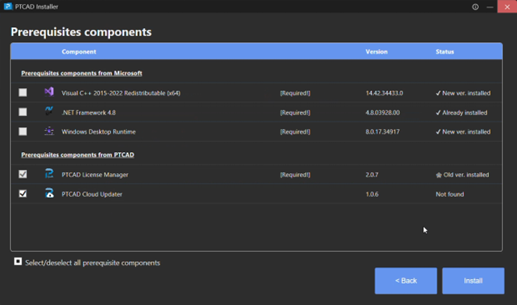
Step 4: Prerequisite Check The system will verify and install any necessary components, such as Microsoft Visual C++, .NET Framework, or the PTCAD License Manager. If these components are missing or outdated, the installer will automatically select them for installation.
Click Next >
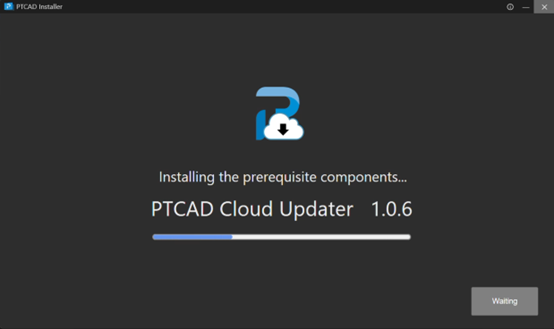
The program will then proceed to install the necessary system components. Once these installations are complete, the installer will automatically move to the next stage of the setup process.
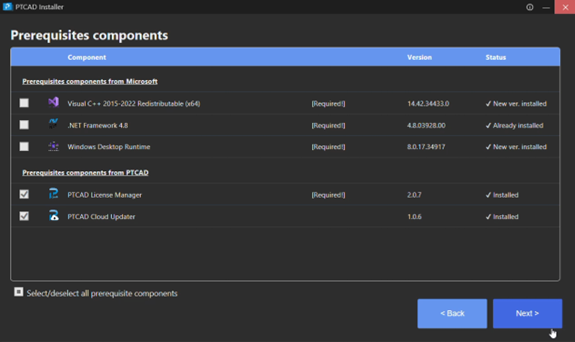
Once the installation is complete, the setup will proceed to the next step. Click Next >
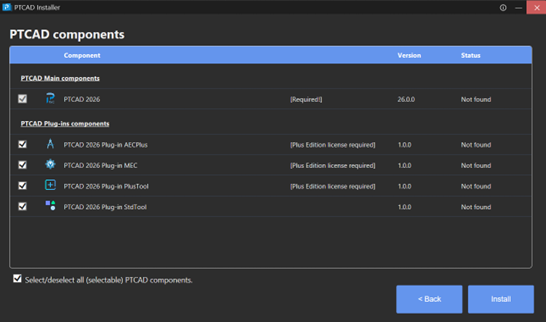
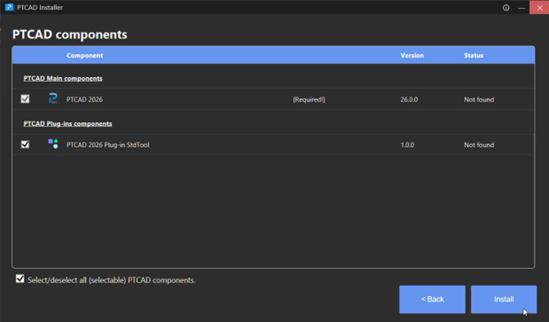
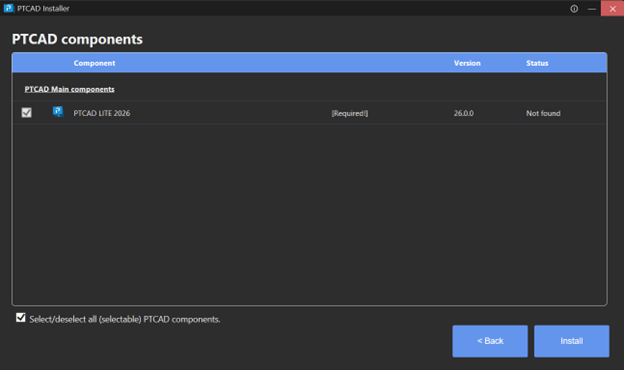
Step 5: Begin Installation This window displays the list of components to be installed, including “PTCAD 2026” and various plug-ins (depending on the version being installed).
Click the Install button to start the installation process.
Example: Installation window for the Plus version.
Example: Installation window for the Standard version.
Example: Installation window for the Lite version.
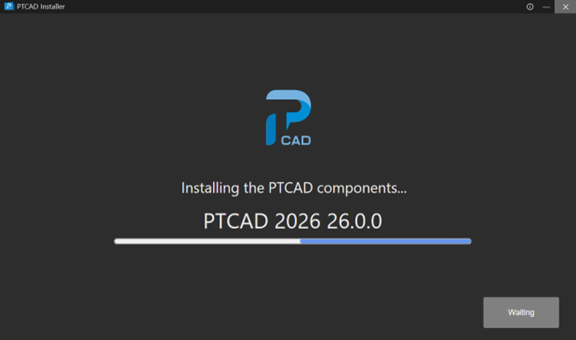
Step 6: Wait for Installation The system is now installing the program and the selected plug-ins for your specific version. Please wait a moment for the process to complete.
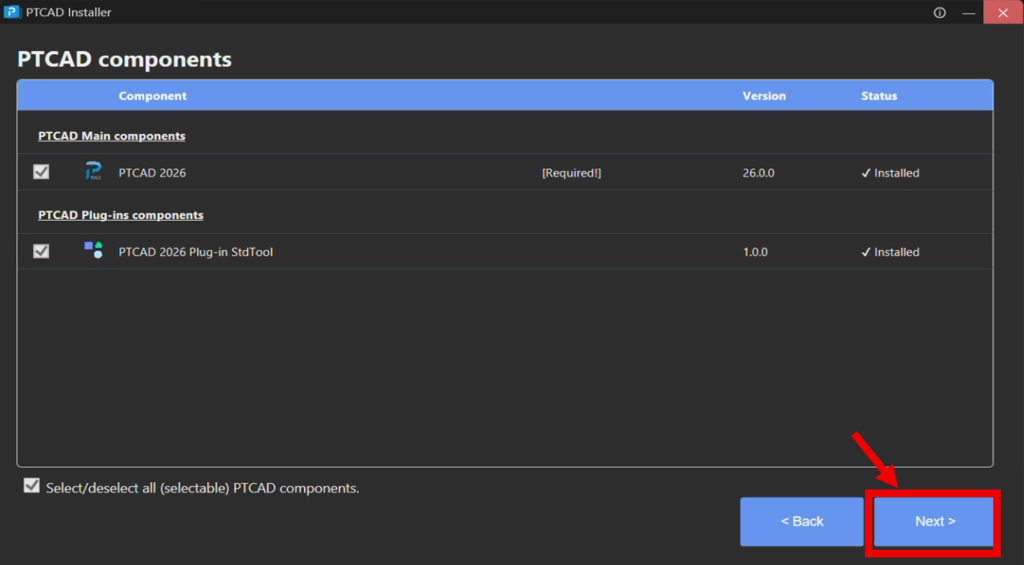
Step 7: Verify Installation Status Once the installation is finished, the Status next to each item will change to a checkmark and display as “Installed.”
Click Next >
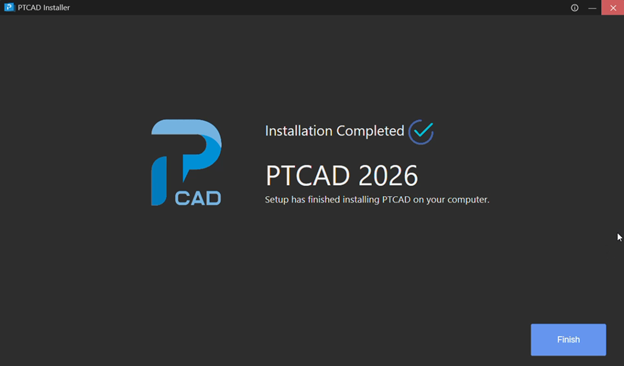
Step 8: Finish Installation The window will display the message “Installation Completed,” indicating that the setup is successful.